
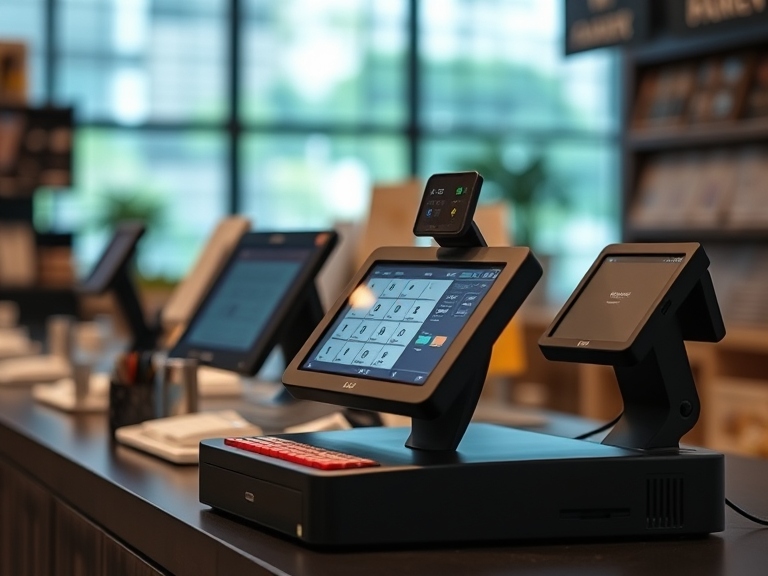
A Touch Screen POS (Point of Sale) system is one of the most essential components of any retail, restaurant, or service-oriented business. It streamlines transactions, improves the customer experience, and helps you manage sales data. However, with constant use comes constant exposure to dirt, dust, fingerprints, oils, and bacteria. To ensure your POS system works smoothly and lasts longer, it’s essential to keep it clean.
In this comprehensive guide, we’ll show you how to clean a touch screen POS, why it’s necessary, and the best practices to maintain your device for optimal performance. We’ll cover everything from basic cleaning techniques to advanced care to ensure the hygiene and longevity of your touch screen POS system.
Why Cleaning Your Touch Screen POS is Important
1. Improves Touch Sensitivity and Performance
Touchscreen POS systems depend on the accuracy of the touch interface to ensure quick and efficient transactions. Over time, dust, oils, and fingerprints can create a film over the screen, making it harder for the system to detect touch inputs. This results in delays or even inaccurate readings. Regular cleaning will ensure the screen is free of residues that could interfere with touch sensitivity and responsiveness.
2. Maintains Hygiene
A POS system is often used by many different individuals throughout the day. This makes it a breeding ground for germs, bacteria, and viruses, especially in high-traffic environments like restaurants or stores. Proper cleaning and disinfecting help reduce the spread of bacteria and viruses, providing a safer environment for both employees and customers.
3. Prevents Screen Damage
Sticky residues, dust buildup, and accumulated grime can cause permanent damage to your touchscreen over time. If left uncleaned, the oils and dirt may degrade the screen’s protective coating or cause scratches. Cleaning the screen regularly helps protect the screen and prevents unnecessary wear and tear.
4. Extends the Device’s Lifespan
When you maintain your touch screen POS, it operates more efficiently and lasts longer. Regularly cleaning the screen can prevent damage from dirt or other harmful materials, reducing the need for costly repairs or replacements.
Tools You Will Need to Clean Your Touch Screen POS
Before diving into the cleaning process, gather these essential tools. Using the wrong materials can damage the screen or lead to ineffective cleaning.
1. Microfiber Cloths
Microfiber cloths are the most efficient and safest tool for cleaning touch screens. They are gentle, lint-free, and highly effective at picking up dust and grime without scratching or damaging the surface.
2. Mild Soap and Distilled Water
A mixture of mild soap and distilled water is a gentle yet effective cleaning solution. Distilled water is free from minerals that can leave residue on the screen, making it the ideal choice for cleaning electronic devices.
3. Screen Safe Cleaning Solution
While soap and water work well, you can also use a commercial screen-safe cleaning solution. These solutions are designed specifically for cleaning sensitive electronics and screens without damaging the coating.
4. Compressed Air or Soft Brush
Compressed air is great for blowing out dust, debris, and particles that accumulate in the corners or around the edges of the screen. Alternatively, a soft brush can help dislodge stubborn particles.
5. Electronics Cleaning Wipes (Optional)
For quick and convenient cleaning, you can opt for pre-moistened electronic cleaning wipes. However, be sure to select wipes that are free from alcohol, ammonia, or other harsh chemicals, which can damage your screen.
6. Cotton Swabs (Optional)
Cotton swabs are helpful for getting into the tight corners of your touch screen POS device. These can help remove stubborn dirt and grime in areas where a cloth might not reach.
Step-by-Step Guide: How to Clean Your Touch Screen POS
Cleaning your touch screen POS isn’t a complex process, but it must be done carefully to avoid damage. Follow these steps to ensure proper cleaning:
Step 1: Power Off the POS System
Always turn off your POS system before cleaning. This reduces the risk of accidental touches, prevents the device from malfunctioning, and ensures you won’t trigger any unwanted actions on the screen while cleaning.
Additionally, unplug any cables or accessories connected to the device, especially power cables, to prevent any electrical issues or potential shocks.
Step 2: Dust Removal
The first step in cleaning your POS screen is to remove any loose dust and dirt. Use compressed air or a soft, lint-free brush to remove debris from the screen’s surface and the surrounding edges. Start from the top and work your way down to avoid pushing the dust into other parts of the device.
Step 3: Preparing the Cleaning Solution
If you’re using a DIY solution, mix a small amount of mild soap with distilled water in a 1:1 ratio. Be sure to only use a few drops of soap to avoid residue buildup on the screen. If you have a commercial cleaning solution, make sure it’s specifically designed for electronics.
Step 4: Dampen the Microfiber Cloth
Next, lightly dampen your microfiber cloth with your cleaning solution. Be sure not to soak the cloth, as excess moisture can drip into the device, which could cause damage. If you’re using wipes, make sure they’re not overly wet either.
Step 5: Clean the Touch Screen
Gently wipe the screen using a circular motion, starting from the center and working your way out to the edges. This technique prevents dirt and grime from being spread around the screen. If you’re dealing with heavy smudges or fingerprints, you may need to repeat the process a couple of times.
For stubborn marks, use a slightly dampened microfiber cloth with a little more cleaning solution, but be careful not to oversaturate the screen.
Step 6: Dry the Screen
Once you’ve wiped down the screen, use a dry microfiber cloth to buff the surface. This will remove any excess moisture and prevent streaks or watermarks from appearing on the screen.
Step 7: Clean the Edges and Corners
Use compressed air or a soft brush to clean around the edges of the screen, where dust and debris tend to collect. You can also use a cotton swab to clean the corners and hard-to-reach areas.
Step 8: Let the Screen Air Dry
Allow the screen to air dry for a few minutes before turning it back on. This ensures that no moisture is left that could cause internal damage. Check for any streaks or smudges before powering up the device.
Best Practices for Maintaining Your Touch Screen POS
1. Daily Cleaning Routine
The most important maintenance step is to clean your POS screen daily. In high-traffic environments, where your POS system is touched frequently, it’s especially crucial to wipe down the screen multiple times a day. Using a microfiber cloth will help keep fingerprints, grease, and dust off the screen.
2. Use Screen Protectors
Investing in a screen protector for your POS system is one of the best ways to keep it clean and avoid scratches. A good screen protector can also help reduce the frequency of cleaning, as it prevents direct contact with the screen.
3. Keep the Surrounding Area Clean
Maintain cleanliness around the POS system to reduce dust buildup. Ensure that the counter, register, and area around the system are regularly wiped down and kept free of debris.
4. Schedule Monthly Deep Cleans
While daily cleaning is essential, a deep clean once a month ensures that the entire system is properly maintained. During this time, clean the entire device, check for any build-up inside the casing, and ensure that all ports are clear of dust.
5. Use Proper Cleaning Materials
Always use screen-safe cleaning solutions and microfiber cloths. Avoid harsh chemicals, as they can damage the protective coating on your POS screen. If you’re unsure about the safety of a cleaner, check the manufacturer’s guidelines for recommended cleaning products.
Common Mistakes to Avoid When Cleaning Your Touch Screen POS
1. Over-Wetting the Screen
Avoid using excessive liquid when cleaning the screen. Too much moisture can seep into the device, causing internal damage. Always use a damp, not wet, cloth.
2. Using Harsh Chemicals
Never use ammonia-based cleaners, alcohol, or other harsh chemicals to clean your POS screen. These substances can damage the screen’s coating and degrade its performance over time.
3. Rubbing Too Hard
While it might be tempting to apply more pressure to remove stubborn smudges, this can actually damage the screen. Always use gentle pressure to avoid scratching the surface.
Conclusion
Proper maintenance and cleaning of your touch screen POS are vital for ensuring its longevity, performance, and hygiene. By following the steps outlined in this guide, you’ll be able to keep your system running smoothly, reduce the risk of contamination, and prolong its lifespan. Regular cleaning, proper materials, and best practices will ensure that your POS system remains an effective tool for your business operations.
FAQs
How Often Should I Clean My Touch Screen POS?
It’s recommended to clean your touch screen POS at least once a day, especially in high-traffic settings. If the POS system is used by many people, consider cleaning it more frequently, such as after every customer transaction.
Can I Use Alcohol to Clean My POS Screen?
While small amounts of alcohol diluted with water are acceptable, it’s better to avoid using alcohol on your touch screen POS. Alcohol can damage the screen’s protective coating over time. Instead, use a screen-safe cleaner or a mild soap solution.
How Can I Prevent Fingerprints on My POS Screen?
Using a screen protector and cleaning the screen regularly can help reduce the buildup of fingerprints. You can also encourage customers and employees to use a stylus when interacting with the screen.
Is It Safe to Use Disinfecting Wipes on POS Screens?
Disinfecting wipes are safe as long as they don’t contain alcohol or other harsh chemicals. Be sure to check the label before using wipes on your POS system.